QGIS Plugin Overview
MOBI-DIC runs inside QGIS as a panel that docks next to the map. It starts the processing in the background and brings the results back as QGIS layers, so you can set up, run and map a displacement analysis without leaving QGIS.
The panel at a glance
Click a letter below, or in the picture, to see what that area does.
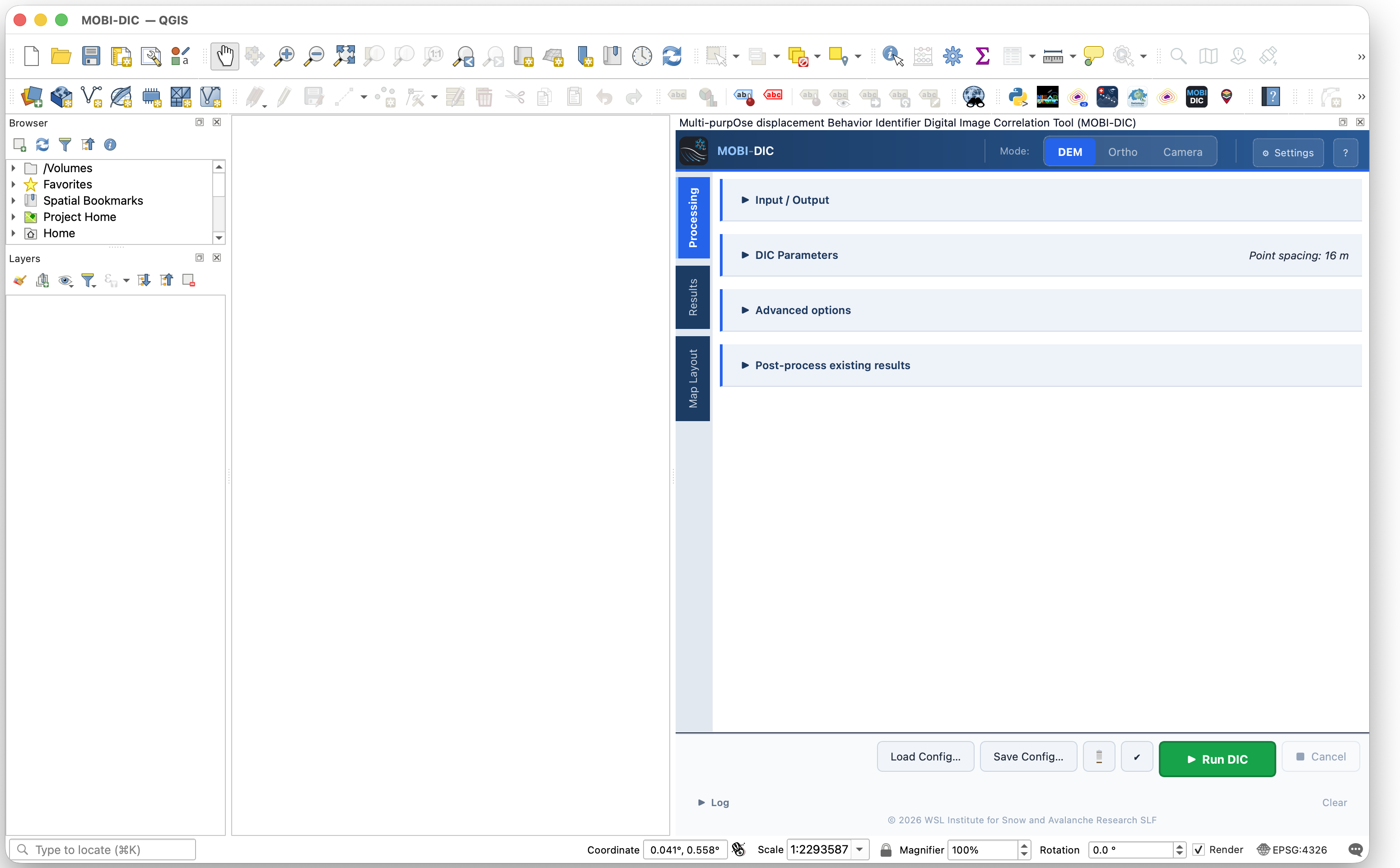
The three pages
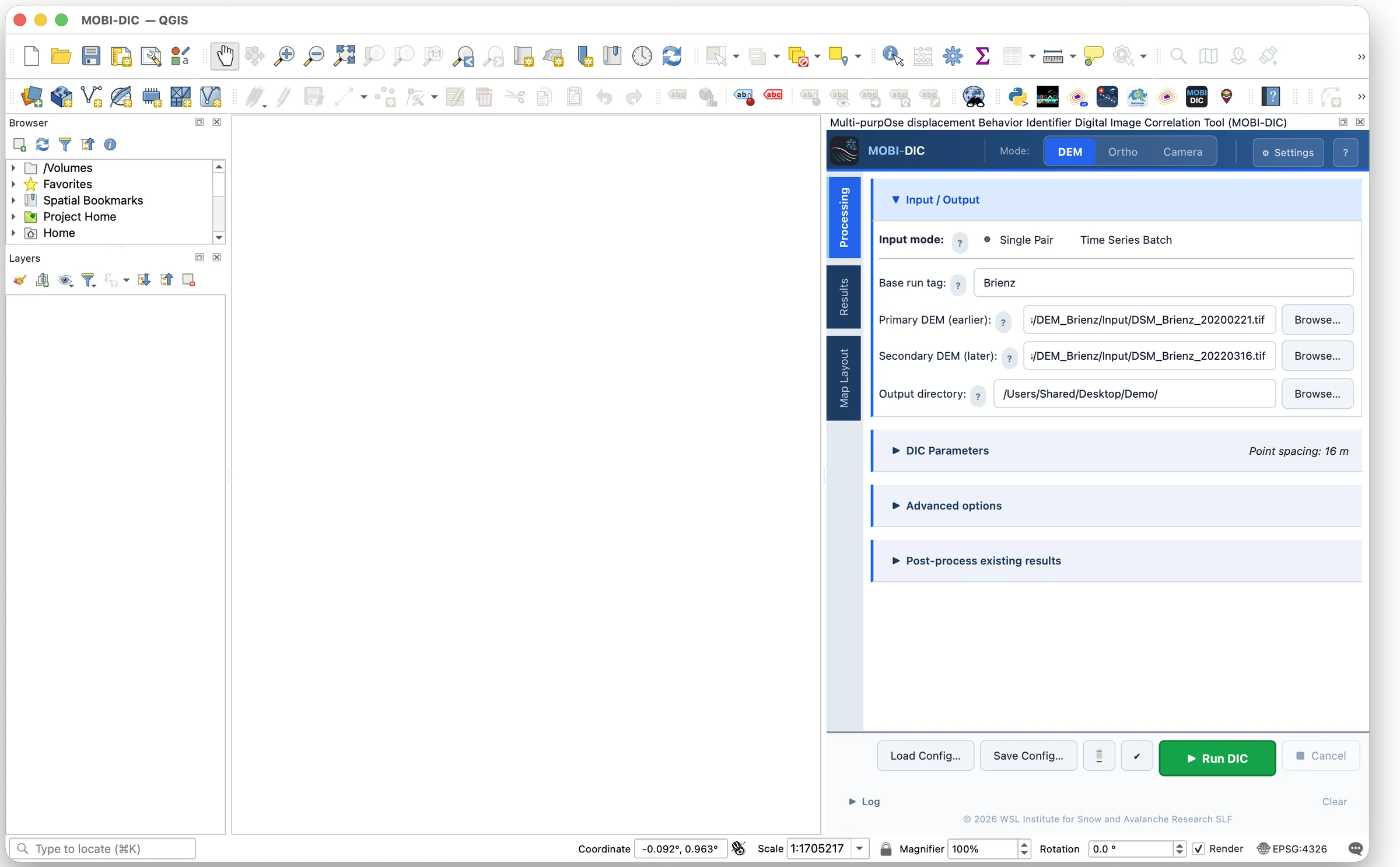
The sidebar on the left of the panel leads through a run from start to finish. Click a letter in a screenshot for a short explanation and a link to the full page.
Set up a run and start it. The input files and the main parameters are in the first two sections. Everything else, including co-registration and the outlier filters, is in the collapsed Advanced options.
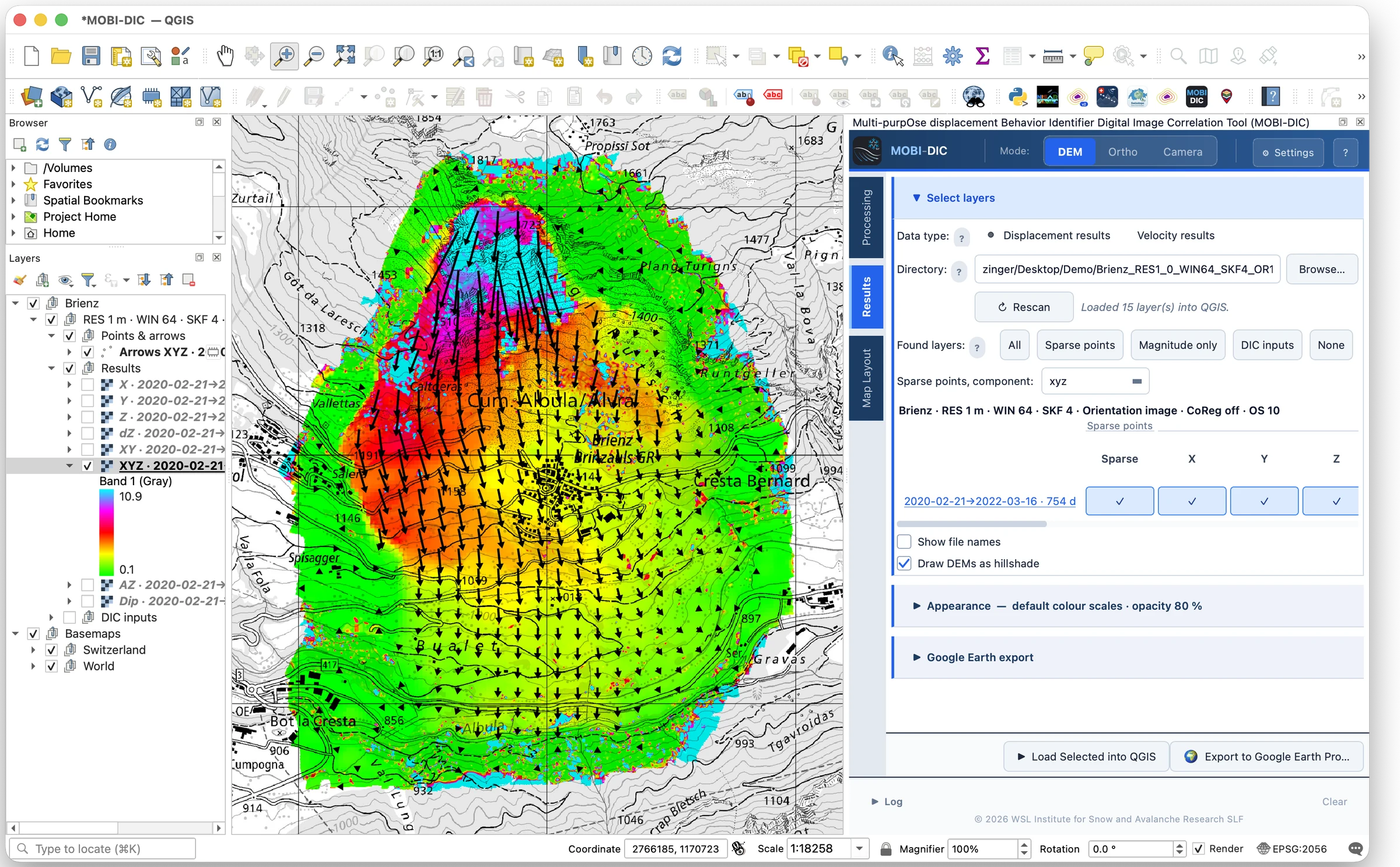
Load the outputs into QGIS with an automatic symbology, or export them to Google Earth.
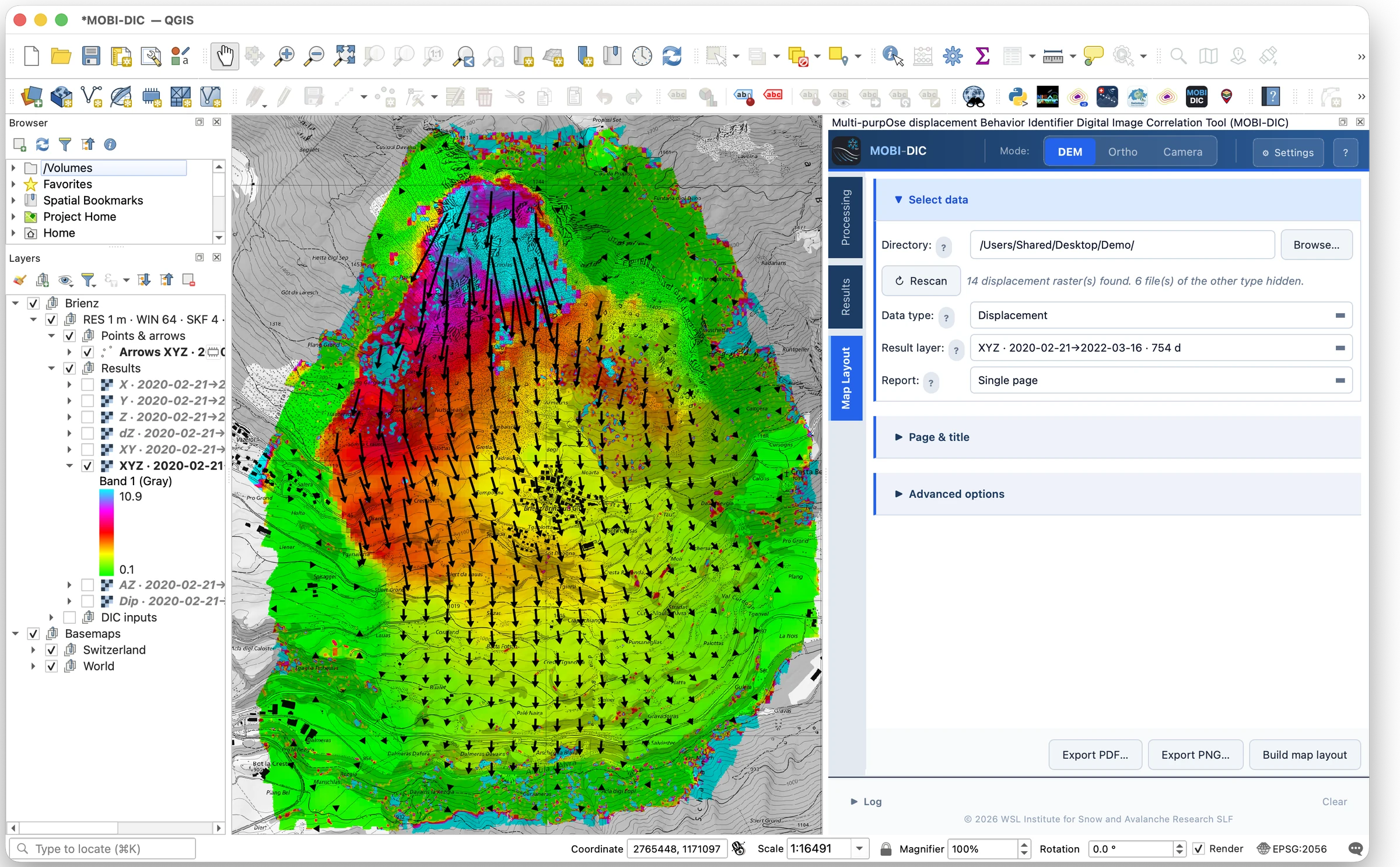
Turn a result into a print-ready map: a single page, a multipage report or a panel grid, as PDF, PNG or QGIS layout.
Choose a mode
The mode toggle selects the pipeline that matches your data. The Input / Output and DIC Parameters sections then show only the fields that are relevant.
DEM
Terrain models, for example from UAV or lidar
Result: 3D displacement
Ortho
Orthophotos and satellite scenes
Result: 2D displacement
Camera
Time-lapse cameras and terrestrial photos
Result: 2D displacement in pixels
The bottom bar
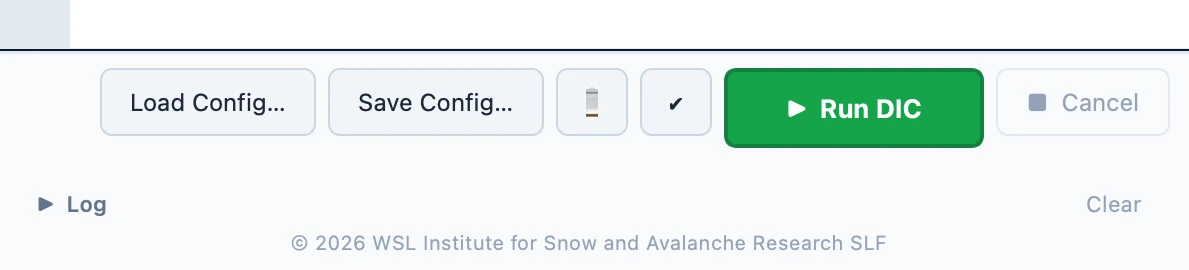
The bar at the bottom of the panel stays visible on every page. It saves and loads setups, starts and stops runs, and shows the log. Click a letter to see what a button does.
Settings
The ⚙ Settings button at the top right opens the global preferences. They apply to all runs and sessions and are grouped into five collapsible sections.
License Version, build date, enabled modes and expiry date. Only shown when a license file is present.
Python Environment Install or reinstall the processing environment, set the paths by hand and check it with Test Python. See the installation guide.
Processing The number of parallel workers (Auto uses all CPU cores), and an optional RAM log to diagnose out-of-memory crashes on large inputs.
Results Auto-load the results after a run, the progress update interval and the default colour range mode (Auto percentile or Fixed).
Cache The size of the plugin cache, and Empty Cache to free disk space.
The ? button next to Settings opens the Help panel, with credits, a quick-start guide, a link to the online documentation and the support contact.