Input / Output
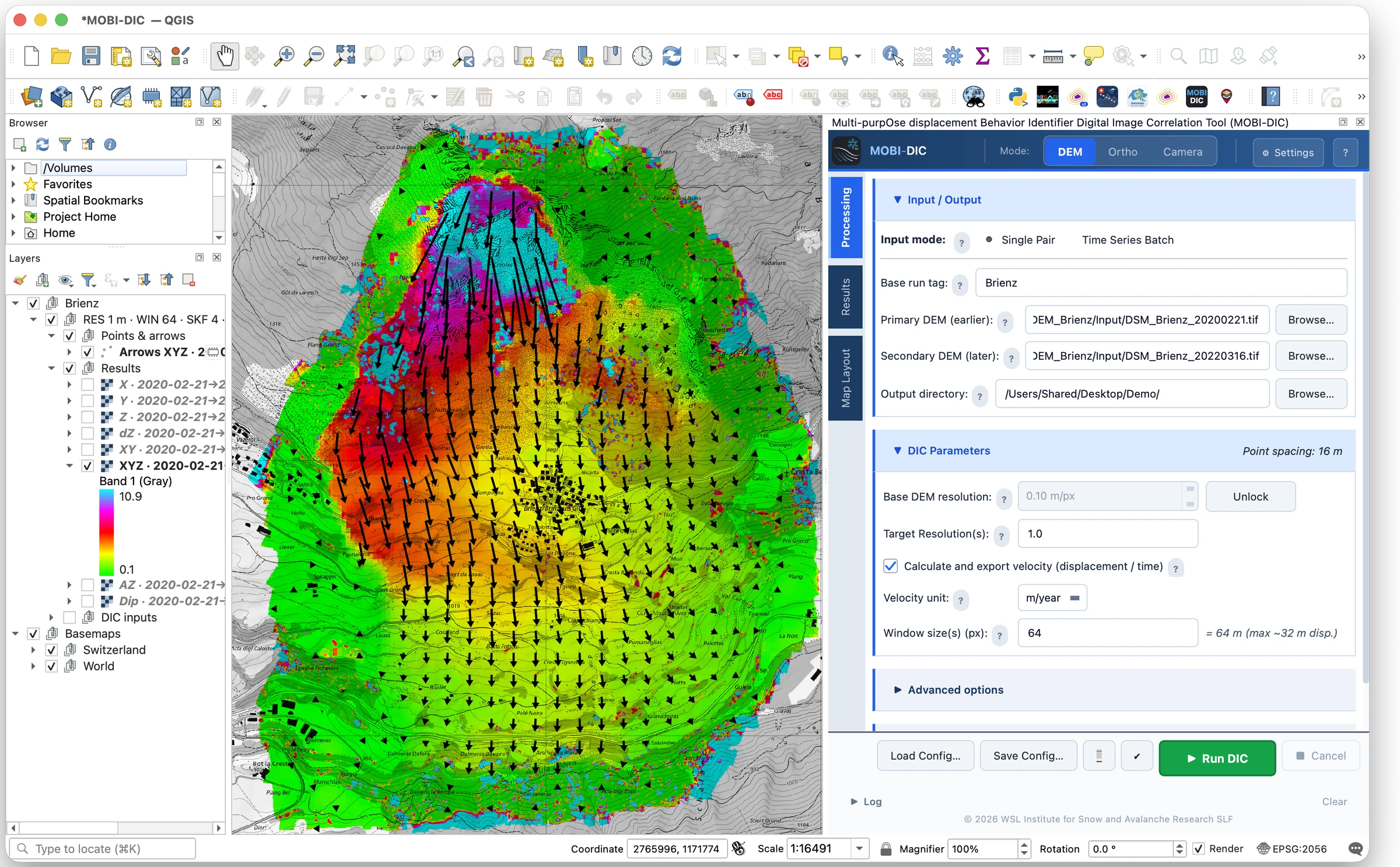
Every run starts here: choose the input files and the output folder, and decide whether to process one pair or a whole time series. When it is set up, start the run with ▶ Run DIC at the bottom of the panel.
Input requirements
The requirements depend on the mode you chose with the mode toggle.
- Format: GeoTIFF (
.tif,.tiff), single band with elevation values. - CRS: both files must have the same CRS. A mismatch is logged as a warning, but the results will be wrong.
- Overlap: the files must overlap. Only the common area is processed.
- No data: cells with the raster no-data value or
0are left out of the correlation. - Degrees: inputs in a geographic CRS (for example WGS84) are reprojected to the matching UTM zone when
auto_reproject_to_utmis on.
- Format: GeoTIFF (
.tif,.tiff), single band (grayscale) or multi-band. - Bands: multi-band images are converted to grayscale with the standard luminance weights (0.299 R + 0.587 G + 0.114 B). Only the first three bands are used, so a fourth band such as NIR or alpha is ignored.
- CRS and overlap: the same CRS for both files, and they must overlap.
- No data: cells with the raster no-data value or
0are left out. - Degrees: reprojected to UTM as in DEM mode.
- Format: any image that Pillow can read: JPEG, PNG, TIFF, BMP and so on. No GeoTIFF is needed.
- Bands: any number. Images are converted to RGB and then to grayscale.
- CRS: none. All results are in pixels.
- Size: the two images may differ in size. With
align_mode: crop(the default) both are cut to the common top-left area. Withalign_mode: padthe smaller one is padded with zeros.
File names and dates
The file name needs a date
The date is read from the file name as YYYYMMDD, for example dem_20230831.tif. Dashes (2023-08-31) are not recognised.
The processing reads the first run of eight digits in the file name and checks that it is a real date. The date is used in the output file names, for the velocity, and for the date range in Map Layout reports. A popup warns you when the primary or the secondary file has no such date. Without dates the output files carry none, and velocity and the date ranges in reports are not possible.
In time-series mode the image list is more lenient and also shows a date for names like 2023-08-31 or 2023_08_31, and uses it for the run tag. The processing itself does not read these, so rename such files to YYYYMMDD.
Check inputs before a run
The ✔ button next to Run DIC checks the inputs and parameters before anything starts. The same check runs when you press Run DIC. Problems show up as a readable list, not as an error in the middle of the log.
These stop the run:
- A file cannot be opened, or primary and secondary are the same file.
- The output folder is missing or not writable.
- Primary or secondary has no CRS, or the CRS differ (DEM and Ortho).
- Primary and secondary do not overlap.
- A window size does not fit into the common area.
- The co-registration box lies outside the common area.
You are asked whether to continue anyway:
- The overlap is below 50 % of the smaller file, the pixel sizes differ, or a window is very large (few windows).
- The base resolution differs from the pixel size of the file (for example after Unlock), or the target resolution is finer than the data.
- The estimated memory is above 80 % of the available RAM, or less than 1 GB is free on the output drive.
- Camera images have different sizes (they are cropped or padded).
- A file name has no date while Export velocity is on, or the secondary date is not later than the primary.
These lines are written to the log:
- The number of correlation windows and the rough peak RAM for each resolution and window size.
For a time series every pair is checked. Identical messages of many pairs are collapsed, for example "and 12 more pair(s)".
Time series batch
Switch Input mode to Time Series Batch to run many pairs in one go. The panel then shows an image library and a pair builder instead of the two file fields.
-
Build the image library
Add your images with Add from Folder… (all images of a folder, sorted by file name) or Add File…. Remove Selected takes files out again. Each entry shows the date found in the file name. In Camera mode folders also add JPEG, PNG and BMP files, otherwise only GeoTIFFs. The first file you add sets the resolution and CRS that the parameters are detected from.
-
Choose the pairing mode
The pairing uses the order of the image list. Press Regenerate Pairs after you change the mode or the list.
Images of one series may have different resolutions. The first image of a pair sets the pair's pixel size and the second image is resampled onto it, so every pair is processed at the target resolution you chose, whichever base resolution is shown.
Pairing mode Pairs for the images A, B, C, D Sequential (i → i+1) A→B, B→C, C→D All Combinations (every unique pair) A→B, A→C, A→D, B→C, B→D, C→D Against Reference (all versus the first image) A→B, A→C, A→D -
Check the pair table
The table lists each pair with its Primary, Secondary, Run Tag and Status. The status is updated while the batch runs. Clear empties the table.
Output naming
The run tag is added to the names of all result files and folders. The Base run tag is required: Run DIC stops with the message "Run tag is empty" without it. The processing adds the parameters of every run to it:
The co-registration method (FULL or BBOX) is only added when co-registration is on, and a decimal point in the resolution is written as an underscore. For example: MyRun_RES1_0_WIN64_SKF4_OR1_COF0_COOS2_OS10.
In a time series each pair gets its own tag from the base tag and the two dates found in the file names, for example Brienz_2020-02-21_2022-03-16. If a date cannot be read from a file name, the pair number is used instead so that pairs never overwrite each other.